About

All telecom fundamentals on SIP protocol, VOIP, RTP, RTCP knowledge, Technical Youtube Videos, Linux material, Android, SSCA certification information,the sip school videos.

Sunday, 30 September 2012

Google Responds To Android SMS Bug: Fixes Are On The Way

Last week there was a flurry of reports about a serious bug affecting Android users: it seemed that some people who used the default SMS application were sometimes having their messages sent to the wrong person. Obviously that’s pretty alarming — especially since reports of this bug had apparently been around for months, but Google had yet to fix or even acknowledge it. After the press storm Google upgraded the status of the bug report to ‘Critical’, and now an Android team member has just posted an update on what’s going on.
The bottom line: Google identified not one but two bugs that are causing unintended behavior, but says that both are rare. One issue leads the wrong message to be displayed when you tap on it, the other actually sends the message to the wrong person. Fortunately fixes for both of these problems are on the way.
Here’s the update in the bug tracker:
Thanks to everyone for your patience while we’ve been investigating these reports. As it turns out, we believe there are two distinct situations being discussed on this issue chain. Fortunately, we have fixes for both of them.
When some users tap to open a message in the Messaging application, they’re seeing a different message appear instead. We don’t believe this issue is affecting many users, but we’ve developed a fix that we’re preparing to deploy. Of course, double-checking the displayed message before hitting “Send” will prevent any messages from being sent to the wrong recipients. We’ve found in testing this issue, it is more likely to occur if you tap on a message before the Messaging app is fully loaded, so we recommend waiting for all the elements to load before clicking on the message you want to display.
Separately, some users have reported that their SMS messages are being delivered to the wrong people. It took us some time to reproduce this issue, as it appears that it’s only occurring very rarely. Even so, we’ve now managed to both reproduce it and develop a fix that we will deploy.
While we don’t anticipate any persistent problems, we’ll continue to investigate in case we come up with additional ways to trigger these bugs. Thanks again for helping us improve Android.
Google will likely distribute the fixes over the air to the Nexus One and Nexus S, and users of other devices will have to wait for their manufacturer to release an update (which they’ll hopefully do quickly). In the mean time, you may want to check out another SMS app if you’re concerned about this — Handcent SMS is quite popular, and I’ve been a big fan of Google Voice (which has its own SMS feature built-in).

Android bug seen as risk

Cellphones using Google’s Android operating system are at risk of being disabled or wiped clean of their data, including contacts, music and photos because of a security flaw that was discovered several months ago but went unnoticed until now.
Opening a link to a website or a mobile application embedded with malicious code can trigger an attack capable of destroying the memory card in Android-equipped handsets made by Samsung, HTC, Motorola and Sony Ericsson, rendering the devices useless, computer security researcher Ravi Borgaonkar wrote in a blog post Friday. Another code that can erase a user’s data by performing a factory reset of the device appears to target the newly released and top-selling Galaxy S III and other Samsung phones, he wrote.
Borgaonkar informed Google of the vulnerability in June, he said. A fix was issued quickly, he said, but it wasn’t publicized, leaving smartphone owners largely unaware that the problem existed and how they could fix it.
Versions of Android that are vulnerable include Gingerbread, Ice Cream Sandwich and Jelly Bean, according to Borgaonkar. He said the Honeycomb version of Android, designed for tablets, needs to be tested to determine if it is at risk as well.

Saturday, 29 September 2012

HTC launches One XC with 1.5 GHz processor

It is believed to be the successor model of HTC One X but will the company introduce it in India with the same processor?

Global smartphone giant, HTC has launched a new smartphone, called One XC, during the ongoing Chinese Telecommunications Fair, Beijing. The next generation One XC is believed to be the successor of the popular HTC One X which today is the flagship device of the HTC One smartphone series.
Powered with a dual-core Snapdragon S4 processor clocked at 1.5 GHz and coupled with 1 GB of RAM, the smartphone is expected to have a high end performance. For operating system, the HTC One XC makes use of the Google Android Ice Cream Sandwich 4.0.3 operating system and is also expected to be upgraded to the Android Jelly bean operating system in the coming days.
HTC launches One XC
As reported by Cnmo.com, the device's performance is great and is comparable to most quad core processor based devices presently available in the market.
HTC launches One XC
The One XC comes with a 4.7-inch TFT LCD display with a 1280 x 720 pixel resolution. At the back there is an 8 megapixel camera which is identical to the one found in the One X. Moreover, it has F/2.0 aperture and 28mm wide-angle lens that ensures great photographic and video recording capabilities too.
In terms of internal storage, the HTC One XC has 16 GB of internal storage along with expandable memory slot of 32 GB. For connectivity, the device has Bluetooth, WiFi, DLNA functionality, 3G cellular connectivity and micro USB port.
Like other premium HTC smartphones, the One S will also come with Beats Audio for superior audio performance.
Unfortunately, the pricing and availability details for countries other than china are still unavailable but we surely believe that the device will be priced similar to the HTC One S Android smartphone.
Image Credit: CNMO.com

How to Fix Passbook Error in iOS 6

Earlier today, we told you that many people were having trouble accessing Passbook compatible apps, a section of one of the new features of the  iOS 6, the operating system that Apple released today. It now appears as though there is a simple fix that will allow users to access the App Store and thus, some of the apps that are compatible with Passbook.
Several readers have chimed in with a fix for the Cannot Connect Error that many have been seeing when trying to access the App Store through the Passbook app.
I counted myself as one of them until I used this fix.
Read: How to Use PassBook in iOS 6.
passb
After using the fix, I am now able to access the App Store through Passbook.
It’s extremely simple and it will take only a few minutes of your time. And afterward, you’ll be able to download some of the apps that are compatible with Apple’s new service.
1. First, head to the Settings in your iPhone.
2. Click on General.
3. Next, head to Date and Time which is down the list.
4. Once you’re in there, you’ll want to change Set Automatically to Off.
5. Go to Set Date & Time.
6. Click on Today’s Date. Once you do that, you’ll be given the option to change the date.
7. Move the year one year forward to 2013.
8. This will prevent the error from happening. If you wish to change the date back to the real date, simply set Set Automatically to On and everything will return to normal.
9. Head into Passbook and marvel at the apps.
This fixed the problem for me, at least for now, and I’m now able to access a range of Passbook compatible applications including Fandango, United Airlines and Live Nation.
passbook_overview
Passbook, for those unfamiliar, is a new feature in iOS 6 that allows users to use their iPhone much like a mobile wallet. The feature is not available on the iPad.
Companies will begin to add passes for Passbook and once they do, users will be able to store things like airline tickets and movie passes which can pop up an alert in the Notification Center. Passes in Pasbook also include the option to automatically alert users when it’s time to use them.
Passbook passes are currently not active but users can create their own over at PassSource. This site is not affiliated with Apple in any way so be cautious.
For those that can’t wait, this is certainly a viable option.
iOS 6 is Apple’s new operating system and it comes with over 200 new features for iDevice users. It’s available to iPhone 3GS owners and up, iPad 2 owners and up, and iPod touch fourth generation owners.

Apple fixes accessibility issues with new iOS 6 App Store design

Apple has quickly responded to user complaints regarding the use of VoiceOver when browsing the redesigned iPhone App Store in iOS 6.
The improvements come only a few days after AppleInsider highlighted the fact that VoiceOver could no longer read application ratings. In previous versions of iOS, blind users could use the VoiceOver feature of an iPhone, iPad or iPod touch to find out how well-reviewed an application was.

Reader J. P. Shandra reached out again on Friday to note that Apple has made changes on its end without the need for an iOS update. He said that VoiceOver now reads all ratings in the App Store, iTunes Store, and the iBookstore.

The improvements made to Apple's digital storefronts were also noted on Friday by AppleVis, a site that advocates for blind and low-vision users of Apple products and applications. There, author David also noted that application screenshots in the App Store are now clearly labeled for VoiceOver users.

He also noted that the Search and Genius tabs in the App Store feature a "picker control that allows you to move quickly through the listed apps." David said the changes make browsing search results much quicker.

Stores

"It's great to see that Apple are still actively working on accessibility improvements to the App Store and are rolling out fixes in double-quick time," he wrote.

Blind users noted that there were a number of major problems associated with the newly redesigned App Store in the Golden Master build of iOS 6. But many of those issues were fixed by the time the final software was released to the public.

How to Fix Facebook Cannot Upload Photos in iOS 6

After updating to the latest software, some iPhone users cannot upload photos to Facebook, encountering a lock screen telling them, “This app does not have access to your photos and videos.”
Users that see this message in the Facebook app in iOS 6 won’t be able to upload photos to Facebook from the Facebook app, though the new Facebook Integration still allows users to post photos from the Photos app.
This guide will show users how to fix the Facebook cannot upload photos error so that users can upload photos from their Camera Roll to Facebook.
Facebook Photo Upload Not Allowed Lock Icon - 1
Facebook won’t upload photos, showing a lock icon on screen after iPhone update.
The problem is that some users may mistakenly deny Facebook access to the Camera Roll when it asks the first time. The new iOS 6 privacy settings prevent apps from accessing Photos and contacts without explicit permission. If a user tells Facebook not to access the camera roll they will see the Facebook photo upload lock screen shown above.

How to Enable Facebook Photo Uploads in iOS 6

If the Facebook app will not upload photos from the camera roll, close the app and go to settings to fix the problem. The new IOS 6 Privacy settings menu allows users to control what apps can access photos and more. We’ll turn on Facebook’s access to the camera roll. These same directions can enable app access to photos and other information if an app says it cannot access photos or contacts and points a user to Privacy Settings.
Open Settings.
Facebook Photo Upload Not Allowed Lock Icon - 4
Open iPhone privacy settings.
Tap on Privacy at the bottom of the screen, some users may need to scroll down to see the Privacy menu.
Facebook Photo Upload Not Allowed Lock Icon - 3
Open Photo privacy settings.
Tap on Photos.
Find the Facebook app in the list of apps and slide the toggle to On.
Facebook Photo Upload Not Allowed Lock Icon - 2
Slide Facebook access to On.
Some users will see multiple apps here, don’t be alarmed if there are no other apps on this screen.
After turning access on, check to make sure Facebook can upload photos. If the app prompts, allow access to the camera roll, but it should be good to go without asking.
Users will see similar prompts when using apps that access location, photos and contacts in iOS 6. This is part of Apple’s new plan to allow users to control their information better. If a photo app or social network app asks for permission to access Photos on the iPhone , most users will want to say yes.
If a game asks for access to contacts or other information, the better answer might be No. Some apps may try to gain access to contacts or location for purposes most users wouldn’t like. When an app asks for permission to access contacts, photos or location stop to ask if it really needs access to this information.

Bugs & Fixes: Troubleshooting iOS 6

The rapid adoption of Apple’s iOS 6 has been impressive. Initial estimates claim that as many as 25 to 35-percent of all iPhones were running iOS 6 within 48 hours of its release.
With all those users hammering away at the new OS, you can be sure that any bugs that survived Apple’s beta testing would soon be uncovered and publicized on the web. And that’s exactly what’s happened.
An excellent first stop to check for bug reports is the iOS section of Apple Support Communities. Two hardware-related items there especially caught my attention: short battery life and loss of Wi-Fi connectivity. Other iOS 6 problems, beginning with iTunes Match, extend beyond what I found at Apple’s forums.

Short battery life

A significant contingent of iPhone users report that their iPhone’s battery depletes unusually fast under iOS 6. While the majority of postings are from people moving up from an older iPhone to an iPhone 5, the symptom also appears to affect those upgrading to iOS 6 on an iPhone 4 or 4S. It’s still not clear what percentage of iPhone users have this problem; it’s certainly not a majority or we would be hearing a lot more about it.
If you are among the unlucky ones bothered by this rapid depletion, the most often suggested fix is to launch the Settings app and navigate to General -> Reset. From here tap, Reset All Settings. After doing this, you’ll have to re-enter several custom settings, but the battery issue should hopefully be resolved.
I say “hopefully” because, as is always the case in these matters, there is no single fix that works for everybody. A sudden rapid depletion of the battery charge can happen to any iPhone user at any time. For example, about a month ago, my iPhone 4S running iOS 5 developed “short battery life syndrome.” When it happened, my first step was to check for apps that are known to drain the battery even when they are not the active app. A primary suspect is a GPS navigation app that continues to track a route. I called up the multitasking bar and force quit about a half dozen potential culprits. To be extra safe, I launched Settings and disabled Location Services. None of this had any effect.
In the end, at the suggestion of an Apple Store Genius, I killed every app listed in the multitasking bar. This took awhile, as several dozen apps were in the bar. But it worked. Battery life immediately returned to normal. Even though my multitask bar is once again filled with apps, the symptom has not returned. So I’m guessing it was an intermittent bug in some still-unidentified app.

Wi-Fi connectivity loss

Several Apple Support Communities threads cite a loss of Wi-Fi connectivity in iOS 6. In a massive thread titled iOS 6 WiFI Disabled, users report that the Wi-Fi option on their phone is grayed out and unselectable. Another Apple Communities thread covers a related Wi-Fi problem specific to the iPhone 5: “My iPhone 5 connects to Wi-Fi networks and remembers them, but receives absolutely zero data through the network. LTE and 3G no problem.”
Numerous potential solutions are offered but there doesn’t seem to be any that are universally supported. Some were able to restore their Wi-Fi access only by downgrading back to iOS 5 (which is not even possible for most users at this point). The good news is that, despite the large number of reports, most users are not having this symptom.
A footnote: Some Wi-Fi losses may stem from a problematic interaction between Wi-Fi and cellular data connections. Numerous users have found that turning off Cellular Data in Settings gets their Wi-Fi working again. Others report that data is being routed through the iPhone’s cellular connection even when the device is on a Wi-Fi network. According to one theory (which I cannot confirm as accurate), this all may be a consequence of a feature, intended to be added in iOS 6, that appears to have been dropped at the last minute: Wi-Fi Plus Cellular. The problems could occur because the feature remains erroneously enabled in some iPhone 5 units or on the phones of developers who were running beta versions of iOS 6. If so, it will almost certainly require an update from Apple to fix this.

Music missing

After upgrading to iOS 6, some users found that the music in the Music app was gone. This appears to happen only if iTunes Match is enabled. The precise symptom is either that music remains listed but unplayable, with all songs having a posted length of 0:00—or there is a lone Music screen that says “No Data.”
One possible cause is that iTunes Match is not enabled even though you think it is. This happened to me on my iPad. I launched Settings and selected to turn on iTunes Match (you can do so either from the settings for iTunes and App Stores or for Music). While this appears to work, if you exit and return to the setting, you’ll find that the iTunes Match option has reverted to Off. If your Music library is entirely based on iTunes Match, this would account for why nothing is available.
The simplest fix, if it works, is to go to Settings -> General -> Reset and select Reset Network Settings. This did the trick for me. I had to rejoin my Wi-Fi network. After that, when I next enabled iTunes Match, it stayed enabled. The Music app now showed all the music that was in my iCloud storage.
If this fix doesn’t do the job, you might have success with more extreme solutions. One such recommended fix involves connecting your iPhone to your Mac and, using a Mac utility such as PhoneView, navigating to Disk -> iTunes_Control -> iTunes. From here, delete the three MediaLibrary files. Before you try this, check the postings in this thread or the one linked above for more details.

Changes to iTunes Match

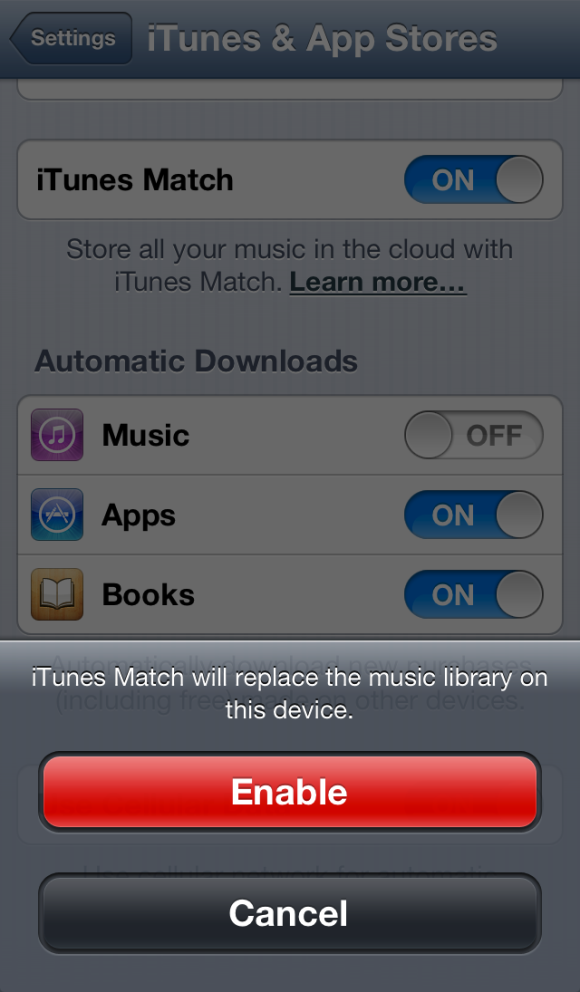
Speaking of iTunes Match, when you first enable the feature on your iOS device, you will likely see an alert that states: “iTunes Match will replace the music library on this device.” This means that any music previously synced to your iOS device via iTunes on your Mac will be removed. Doing so also disables Genius Mixes and Genius Playlists.
iTunes match will remove existing music on your iOS device
This is different than how iTunes Match worked prior to iOS 6. Originally, you could enable iTunes Match and still retain music locally stored on your iOS device. No more. Now it is one or the other. Some cases of “missing music” may relate to previously synced music being removed.
This is not the only unwelcome change in iTunes Match. As noted in Macworld’s look at iOS 6’s Music app, you can no longer download individual songs from iCloud; it’s either an entire album, playlist, artist’s catalog, or nothing.

“Incompatible” third party apps

As with any iOS upgrade, numerous third-party apps will require an update to be compatible with the new OS. If, after updating to iOS 6, an app starts crashing on launch or exhibiting other strange symptoms, make sure you have the latest version of the app installed.
If you do have the latest version, and the problem persists, delete the app from your iOS device (making sure you first have any associated documents and data backed up) and then re-download the app. This fixed a problem I was having with errors in Navigon.
If neither of these tips work, report the problem to the app’s vendor and check if they have a bug-fix update coming soon.

Problems with Apple’s iOS 6 apps

Problems have been reported with several of the new or updated apps included as part of iOS 6. These include Passbook not working as expected (as I’ve covered here) and the Podcasts app not showing podcast playlists (as noted in Mac OS X Hints). Oh, and you may have heard about concerns with Maps.

Google Maps app for iPhone 5 / iOS 6

Apple apologizes for its mapping service on iOS 6

Apple CEO Tim Cook is "extremely sorry" to customers for inaccuracies in its new mapping software included in iOS 6, and has pointed users to competing services in an open letter to customers released Friday.

With many users and news stories noting multiple inaccuracies in Apple Maps, Cook said Apple "fell short" on the company's goal to make world-class products for customers.
"While we're improving Maps, you can try alternatives by downloading map apps from the App Store like Bing, MapQuest and Waze, or use Google or Nokia maps by going to their websites and creating an icon on your home screen to their web app," Cook wrote in the letter.
Apple launched a new version of Maps last week, and the latest version was built from the "ground up," to include new features such as turn-by-turn directions, voice integration, and vector-based maps, Cook said.
More than 100 million iOS devices use the new version of Maps, Cook wrote. "In just over a week, iOS users with the new Maps have already searched for nearly half a billion locations," he said. "The more our customers use our Maps the better it will get and we greatly appreciate all of the feedback we have received from you."
The Maps software has misplaced some landmarks, pointed some searchers to wrong addresses and has not included major infrastructure such as bridges.


iNum as one more free PSTN-to-SIP gateway

iNum as one more free PSTN-to-SIP gateway

iNum is the international initiative taken by Voxbone in order to create a geographically independent numbering plan with SIP call routing (+883 5100 prefix). At the moment only few carriers route those numbers directly.  The iNum numbers are also reachable from Skype at a small per-minute charge.
If you have your own IP PBX, routing calls to iNum numbers is plain easy.
Also you can easily receive iNum calls on your PBX. There are a number of VoIP providers who offer iNum numbers free of charge. I registered mine at SIP Global Phone. It allows you to add an iNum DID number to your account and forward it to your SIP URI, for example:
DESTINATION DID ACTIVATED PRIORITY USED MINUTE COUNTRY VALIDATED
SIP/conf.trrtrr@pub.dvop.net 883510009024059 Active Priority : 1 01:15 iNUM Pending
I don’t know what pending validation means, hopefully it’s not too harmful :)
As a result, you can reach your PBX at any of iNum access numbers around the world at local call rate. After dialing, you don’t get any prompt, and go ahead with dialing iNum digits. Hint: you don’t need to dial the whole iNum number, and the prefix 883510 can be skipped. So, for my number you would dial 009024059 (you will hear a short greeting and MOH from my conference bridge).
UPD: it appears that SIP Global Phone allows only a single call at a time, so it’s not usable for conferences. The rest works fine.

What's the difference betwen SIP and IAX

    In short, it's the way the VoIP packets are delivered to you.
    SIP - Requires an data port for signaling, and a range of audio ports - known as RTP ports.
    For our signaling, we use UDP port 5080.
    Our RTP range is from UDP port 4000 - 32768.
    IAX - Just uses one port, port 4569.

What is e164?

In a nutshell: E164.org is a public enum directory of telephone numbers that can be reached over the Internet by anyone anywhere!
The system works by publishing a DNS zone, 'e164.org', that can be used by various Internet applications. The idea is to be able to map your phone number to an Email address, website, VoIP addresses, etc. Find out more.
We also have a Frequently Asked Questions page.
If you control large blocks of numbers, or would like us to handle your e164.arpa delegation, please contact us to discuss your requirements and options.
We have a number of plugins to integrate enum lookups into other applications
If you need help configuring your software we have a growing library of information on our wiki, if details are lacking for software you use, please help by contributing as much information as you can.
To protect your privacy and prevent your link from being snooped we secure our SSL certificates from CAcert.org. You may get a warning from your browser about being untrusted, the simple fix is to load CAcert's root certificate into your web browser.

SIP Broker

SIP Broker [1] is a non-commercial Voice over IP network company owned by H.A. Enterprises Pty Ltd.
SIP Broker is a free service that improves a SIP telephone service by a number of innovative features.

ENUM with automatic PSTN fallback

People who have a PSTN phone (or a DID) can map that phone number to a SIP URI (for free at e164.org, but no new registrations – project is abandoned) – that mapping is called ENUM. Whenever someone calls that PSTN phone number from a SIP client or proxy that checks ENUM, the call goes to the mapped SIP URI (rather than via PSTN) and is free.
With SIP Broker, if an ENUM entry is not found, then the call is sent back to the SIP adapter, which then places the call in exactly the same way as if SIP Broker had never been involved. So if a SIP adapter is registered with a prepaid SIP-to-PSTN gateway (like SIPphone or OZtell), then the call will continue regardless if SIP Broker was able to find an ENUM entry.

SIPdomain-to-numericPrefix mapping

Dialing a direct URI can be difficult since phone keypads do not usually include characters other than numbers. SIP Broker maps – for instance – 'Ekiga.net' to '*673', so you would just dial '*673' followed by the number in the SIP address. This works for providers peering with SIP Broker to dial out.
There are over 1000 of these mappings, allowing someone to reach any open SIP proxy (that is, any SIP proxy that doesn't block incoming SIP calls from non-business-partner external domains).
In addition, SIP Broker allows to register shortcuts for SIP addresses that can then be dialed as '*011' followed by the shortcut.

EziDial

EziDial enables VoIP calls to be initiated from your ATA/phone to any destination with a click of the mouse.

What is Android VoIP?

Andorid VoIP is a new way of using your Android phone by routing calls over the internet rather than via traditional mobile operators - thus cutting out the middle man and saving you money.
Andorid SIP client apps enables customers to make free phone calls to other VoIPVoIP users or very cheap phone calls to anyone else in the world from your mobile phone.

Android VoIP phones works wherever you have access to the internet via Wi-Fi or over 3G / 4G.

What Android phones does it work on?

Mobile VoIP brings VoIP to mass-market mobile phones with any Android phone. Some of the latest Android phones on the market are listed at the end of the page.
New Android phones are coming to market everyday and even if your phone is not listed below you can still use VoIP services as long as your mobile phone is Android.

Android SIP Clients Apps

There are several software developers that have released voip apps or SIP clients for making phone calls with Android phones.
Below you can find Android SIP Client apps that are tested with VoIPVoIP over WiFi or 3G Internet connection.

Bria softphone

CSIPSimple

CSIPSimpleCsipsimple is an open source Android project which allows native sip for android device.
The use of this native library will ensure a better speed, call quality and less battery consumption than equivalent pure java projects.
Click here to learn more about CSIPSimple.

SIPDroid

SipdroidSIPDroid is a powerful open source SIP VOIP client for your android phone. In short, it enables mobile voip for all android based mobile phones.
When using Sipdroid, it allows you to choose where you will use VoIP, on WLANs only, on 3G, or EDGE networks. Sipdroid primarily supports G.711 A-law.
Sipdroid is a GPL licensed program that allows you to make and receive SIP and make VoIP from your mobile. The app is simple to use, which just requires you to enter your SIP credentials (server, login and password).
Once it is on, you just enter the phone number you’d like or use the phone numbers on your contact list, remembering to enter the country code.
Click here to learn more about SipDroid.

Acrobits

AcrobitsFeatures of the Acrobits Softphone client include push notifications on incoming calls, bluetooth headset and speaker phone support, call recorder and player, multiple SIP account support, phone contacts integration and a detailed call history.
It is easily set up by the user and offers a logical layout. The Acrobits Softphone app can be downloaded from Android market with WiFi and 3G network capability. Acrobits also supports G.729 codec for better voice quality over 3G networks.
Click here to learn more about Acrobits.

Bria

BriaBria softphone is a SIP-based phone for Android phones that uses a Wi-Fi or 3G connection to make and receive calls. Using Android phone's existing contact list, Bria Android Edition facilitates easy and effective communication management with an intuitive interface that accommodates multiple calls.
Call functionality includes the ability to swap between two calls, merge and split calls and perform attended and unattended transfers.
Bria Android Edition incorporates advanced security settings which allow for secure call signalling and audio encryption. It also contains enhanced audio features including G.711, G.722, GSM, iLBC and an optional G.729 codec for better voice quality over 3G networks.
You can download Bria Softphone app at Android Market.
Click here to learn more about Bria

Native Android SIP Client

If you already have a mobile phone with unlocked Android 2.3 version (gingerbread) or 4.0 ics version (ice cream sandwich), it includes a full SIP protocol stack and integrated call management services over WiFi. Unfortunately Internet Calling over 3G Internet conncetion is disabled and you need to use one of the apps above for VoIP over 3G.
Click here for Android 2.3 (gingerbread) or 4.0 (ice cream sandwich) SIP Configuration.

Android 4.0 Ice Cream Sandwich phones for Mobile VoIP

- Google Nexus phones
- HTC Mobile Phones; HTC One S (T-Mobile), HTC One X (AT&T), HTC EVO 4G LTE (Sprint), HTC Vivid (AT&T), HTC Amaze 4G (T-Mobile), HTC Sensation 4G (T-Mobile) HTC Droid Incredible 2 (Verizon), HTC EVO Design 4G (Sprint), HTC EVO 3D (Sprint), HTC Rezound (Verizon), HTC Rhyme (Verizon), HTC Sensation 4G (T-Mobile), HTC Thunderbolt (Verizon)
- LG Mobile Phones LG Lucid (Verizon), LG Spectrum (Verizon)
- Motorola Mobile Phones; Motorola Atrix 4G (AT&T), Motorola Atrix 2 (AT&T), Motorola Droid Razr (Verizon), Motorola Droid Razr Maxx (Verizon), Motorola Droid 4 (Verizon), Motorola Droid Bionic (Verizon), Motorola Photon 4G (Sprint)
- Samsung Mobile Phones; Samsung Galaxy Nexus (Verizon, Sprint), Samsung Nexus S 4G (AT&T, Sprint), Samsung Captivate Glide (AT&T), Samsung Galaxy Note (AT&T), Samsung Galaxy S II Skyrocket (AT&T), Samsung Galaxy S II (AT&T, T-Mobile), Samsung Galaxy S II Epic 4G Touch (Sprint), Samsung Galaxy S Blaze 4G (T-Mobile)
- Sony Mobile Phones; Sony Xperia Play 4G (AT&T, Verizon)

Android: Place an Internet (SIP) call

You can place calls over the Internet when connected to a Wi-Fi network, rather than over your mobile network. To do so, you must first configure your phone to use an Internet calling account.
After you set up the account, placing an Internet call is no different than placing any other call. However, you must be connected to a Wi-Fi network. When you're making an Internet call, the phone displays Internet Call near the top of the screen.
Internet calling is based on the Session Initiation Protocol (SIP) for voice calls on Internet Protocol (IP) networks.

To add an Internet calling account and configure your incoming and outgoing preferences:
  1. Touch the Phone icon on a Home or All Apps screen.
  2. Touch the Menu icon.
  3. Touch Call settings.
  4. At the bottom of the screen, under Internet call settings: To change your incoming call preference or account settings, touch Accounts.
    To change your outgoing call preferences, touch Use Internet calling.
You'll also want to add SIP addresses for the contacts you want to call this way. To do so:
  1. Touch the contact's info in the Call log tab .
  2. Touch to go to the contact's card.
  3. Touch the Menu icon, then Edit.
  4. Scroll to the bottom of the screen, touch Add another field, and then Internet call.
  5. Touch the Internet call field and type the number.
Important: Calling a phone number over the Internet requires that your service provider supports it. You may incur additional charges. Check with your service provider for details.

Android VOIP

Its possible to use a Google Android Phones' internet connectivity to make low cost or free VOIP phone calls. An Android phone can make Internet connections either via the cellular data networks EDGE, 3G, CDMA, or via WiFi. Using VOIP over the cellular network may violate your cellular provider's terms of service — check your contract first. Below you will find some Android VoIP solutions and mobile apps.

News

VOIP Native Applications for Android


VOIP Web Applications for Android


Android VOIP Apps for Mobile

Description

Cheap calls using MobileVOIP over 3G or Wifi! Call roaming free!Cheap Calls: The MobileVOIP dialer lets you make cheap calls to national or international destinations. MobileVOIP is the best Android voip solution; save on your mobile phone costs right away, by using this Mobile voip (MVoIP) cheap calls app! MobileVOIP offers free 3G calls or WiFi calls for Android, Symbian and iPhone users! Save on monthly calling charges!
Travel Roam free with MobileVOIP! You never have to worry about high roaming costs abroad anymore! When abroad, simply use MobileVOIP over a WiFi network! Whether in a restaurant, hotel room or public HotSpot, you can now save on mobile calling charges when travelling abroad as well!
Simply install our free calling app, register with one of the many supported VOIP brands and save loads of money on your international calls. If your selected destination is not among the FREE destinations, using mobile voip calls enable you to call them at almost no costs. MobileVOIP offers either FREE calls or very cheap calls to any international destination!
- Make sure you have an account from a supported VoIP provider. NEW: signup now via www.MobileVOIP.com !
- Make free international calls over SIP technology with this mobile voip dialer
- Use your own contacts from within the free calls app
- Connect to Internet using 3G, WiFi, UMTS and use your voip credit on the go for cheap calls.
- Place FREE international calls to a selection of destinations.
- Enjoy the cheapest international calls to any other destination.
- Cheaper than Skype! More possibilities than Viber! No one offers cheaper calls!
Stop spending too much money on your international calls; use cheap 3G calls or cheap WiFi calls with MobileVOIP. MobileVOIP is the best FREE calls app you'll find on the market! Install MobileVOIP for your Android VoIP calls and call for free!
Looking for an older version of the app? Visit our website at http://www.mobilevoip.com!
Supported VoIP Brands for free Android calls:
12Voip
Actionvoip
BudgetVoipCall
CallPirates
CallingCredit
CheapBuzzer
CheapVoipCall
Cheapvoip
CosmoVoip
DialCheap
DialNow
DiscountCalling
Easyvoip
FreeCall
Freevoipdeal
Frynga
GlobalFreecall
HotVoip
InternetCalls
Intervoip
Jumblo
JustVoip
LowRateVoip
MegaVoip
NetAppel
NoNoh
PennyConnect
PoivY
Powervoip
RebVoice
Rynga
SMSDiscount
SipDiscount
SmartVoip
SmsListo
SparVoip
StuntCalls
Telbo
VoipBlazer
VoipBuster
VoipCaptain
VoipCheap
VoipCheap UK
VoipChief
VoipDiscount
VoipGain
VoipJumper
VoipMove
VoipRaider
VoipSmash
VoipStunt
VoipWise
VoipZoom
Voipblast
WebcallDirect

** List of countries you can make cheap international mobile internet calls to: Afghanistan, Algeria, Argentina, Australia, Austria, Bangladesh, Belgium, Brazil, Canada, China, Colombia, Denmark, Egypt, Finland, France, Germany, Greece, Hongkong, China, India, Indonesia, Iran, Iraq, Ireland, Israel, Italy, Japan, China, Malaysia, Mexico, Morocco, Mozambique, Netherlands, New Zealand, Nigeria, Norway, Pakistan, Poland, Portugal, Romania, Russia, Saudi Arabia, Serbia, Singapore, South Africa, Spain, Sri Lanka, Sweden, Switzerland, Thailand, Turkey, UAE, Ukraine, UK, USA and other countries.

**MobileVOIP is a Mobile Voip (MVoIP) application developed by Finarea. It supports all Dellmont VoIP brands and enables it's users to save on their monthly calling charges by over 95%. MobileVOIP is a free voip dialer available for Android phones, Symbian phones, Windows Phones, BlackBerry and iPhones.* Download MobileVOIP and call for free!! MobileVOIP does not support peer-to-peer calls to Skype users or Viber users.

Friday, 28 September 2012

3GPP Standards

3GPP standards are structured as Releases. Discussion of 3GPP thus frequently refers to the functionality in one release or another.
Version[4] Released[5] Info
Phase 1 1992 GSM Features
Phase 2 1995 GSM Features, EFR Codec,
Release 96 1997 Q1 GSM Features, 14.4 kbit/s User Data Rate,
Release 97 1998 Q1 GSM Features, GPRS
Release 98 1999 Q1 GSM Features, AMR, EDGE, GPRS for PCS1900
Release 99 2000 Q1 Specified the first UMTS 3G networks, incorporating a CDMA air interface[6]
Release 4 2001 Q2 Originally called the Release 2000 - added features including an all-IP Core Network[7]
Release 5 2002 Q1 Introduced IMS and HSDPA[8]
Release 6 2004 Q4 Integrated operation with Wireless LAN networks and adds HSUPA, MBMS, enhancements to IMS such as Push to Talk over Cellular (PoC), GAN[9]
Release 7 2007 Q4 Focuses on decreasing latency, improvements to QoS and real-time applications such as VoIP.[10] This specification also focus on HSPA+ (High Speed Packet Access Evolution), SIM high-speed protocol and contactless front-end interface (Near Field Communication enabling operators to deliver contactless services like Mobile Payments), EDGE Evolution.
Release 8 2008 Q4 First LTE release. All-IP Network (SAE). New OFDMA, FDE and MIMO based radio interface, not backwards compatible with previous CDMA interfaces. Dual-Cell HSDPA.
Release 9 2009 Q4 SAES Enhancements, WiMAX and LTE/UMTS Interoperability. Dual-Cell HSDPA with MIMO, Dual-Cell HSUPA.
Release 10 2011 Q1 LTE Advanced fulfilling IMT Advanced 4G requirements. Backwards compatible with release 8 (LTE). Multi-Cell HSDPA (4 carriers).
Release 11 Planned to 2012 Q3 Advanced IP Interconnection of Services. Service layer interconnection between national operators/carriers as well as third party application providers.
Release 12 Planned to 2014 Q2 Content still open (as of January 2012).
Each release incorporates hundreds of individual standards documents, each of which may have been through many revisions. Current 3GPP standards incorporate the latest revision of the GSM standards.
The documents are available freely on 3GPP's Web site. While 3GPP standards can be bewildering to the newcomer, they are remarkably complete and detailed, and provide insight into how the cellular industry works. They cover not only the radio part ("Air Interface") and Core Network, but also billing information and speech coding down to source code level. Cryptographic aspects (authentication, confidentiality) are also specified in detail. 3GPP2 offers similar information about its system.

3GPP Organizational Partners

Organizational Partners

The six 3GPP Organizational Partners are from Asia, Europe and North America. Their aim is to determine the general policy and strategy of 3GPP and perform the following tasks:
  • The approval and maintenance of the 3GPP scope;
  • The maintenance of the Partnership Project Description;
  • Take the decision to create or cease a Technical Specification Groups, and approve their scope and terms of reference;
  • The approval of Organizational Partner funding requirements;
  • The allocation of human and financial resources provided by the Organizational Partners to the Project Co-ordination Group;
  • Act as a body of appeal on procedural matters referred to them.
Together with the Market Representation Partners (MRPs) perform the following tasks:
  • The maintenance of the Partnership Project Agreement;
  • The approval of applications for 3GPP partnership;
  • Take the decision against a possible dissolution of 3GPP.
3GPP Organizational Partners
Organization Base region
Association of Radio Industries and Businesses (ARIB) Japan
Alliance for Telecommunications Industry Solutions (ATIS) USA
China Communications Standards Association (CCSA) China
European Telecommunications Standards Institute (ETSI) Europe
Telecommunications Technology Association (TTA) Korea
Telecommunication Technology Committee (TTC) Japan

Market Representation Partners

The 3GPP Organizational Partners can invite a Market Representation Partner to take part in 3GPP, which:
  • Has the ability to offer market advice to 3GPP and to bring into 3GPP a consensus view of market requirements (e.g., services, features and functionality) falling within the 3GPP scope;
  • Does not have the capability and authority to define, publish and set standards within the 3GPP scope, nationally or regionally;
  • Has committed itself to all or part of the 3GPP scope;
  • Has signed the Partnership Project Agreement.
As of December 2011 the Market Representation Partners are:
Market Representation Partners
Organization Website
IMS Forum www.imsforum.org
TD-Forum www.tdscdma-forum.org
GSA www.gsacom.com
GSM Association www.gsmworld.com
IPV6 Forum www.ipv6forum.com
UMTS Forum www.umts-forum.org
4G Americas www.4gamericas.org
TD SCDMA Industry Alliance www.tdscdma-alliance.org
InfoCommunication Union www.icu.org.ru
Femto Forum www.femtoforum.org/femto
CDMA Development Group www.cdg.org
Cellular Operators Association of India (COAI) www.coai.com
NGMN Alliance www.ngmn.org


3GPP

The 3rd Generation Partnership Project (3GPP) is a collaboration between groups of telecommunications associations, known as the Organizational Partners. The initial scope of 3GPP was to make a globally applicable third-generation (3G) mobile phone system specification based on evolved Global System for Mobile Communications (GSM) specifications within the scope of the International Mobile Telecommunications-2000 project of the International Telecommunication Union (ITU). The scope was later enlarged[1] to include the development and maintenance of:
3GPP standardization encompasses Radio, Core Network and Service architecture.[2] The project was established in December 1998 and should not be confused with 3rd Generation Partnership Project 2 (3GPP2), which specifies standards for another 3G technology based on IS-95 (CDMA), commonly known as CDMA2000. The 3GPP support team (also known as the "Mobile Competence Centre") is located at the ETSI headquarters in Sophia-Antipolis (France).

Page Navigation Widget